Rossum Queue
Note that the Rossum team are constantly improving their application and front end. You can always access their latest help documents from the icon  in the top right of the screens.
Please note that your system access is limited to your queue(s) within our host organisation. If you read about any settings that you think you may like to change, but do not have access, then please contact the support team. The reason that access is restricted is that altering settings may have an impact on the integration and could cause issues with processing.
Rossum Queue and Log In
The Rossum queue is the AI tool used to do the OCR extraction. All invoices emailed in or uploaded from Unit4 ERP go into this queue.
For convenience we have added a view queue button to the front page for administration users.

This simply opens the AI tool on the correct login page where you can log in using the same email and password used in the system settings

This will open up the queue home page for you. The default view is the list of documents which are currently awaiting review, however you can change the views to look at invoices at the other status by selecting the tabs along the top.

This is useful for monitoring items which might be stuck at one of the email processing status codes.
From here you can also import documents by using the upload function, these will be treated as emailed invoices.
You can also start the review process directly from this screen but we would encourage you to do this via the Unit4 ERP in order to maintain the integrity of the batches and status.
Finally you have access to the processing statistics by clicking on the graph icon 
Resetting A Document to Re-Download
This is not something which should need to be done regularly if at all.
However for example if you accidentally download a live invoice into a test system or there is a network issue during a download or something this may be useful.
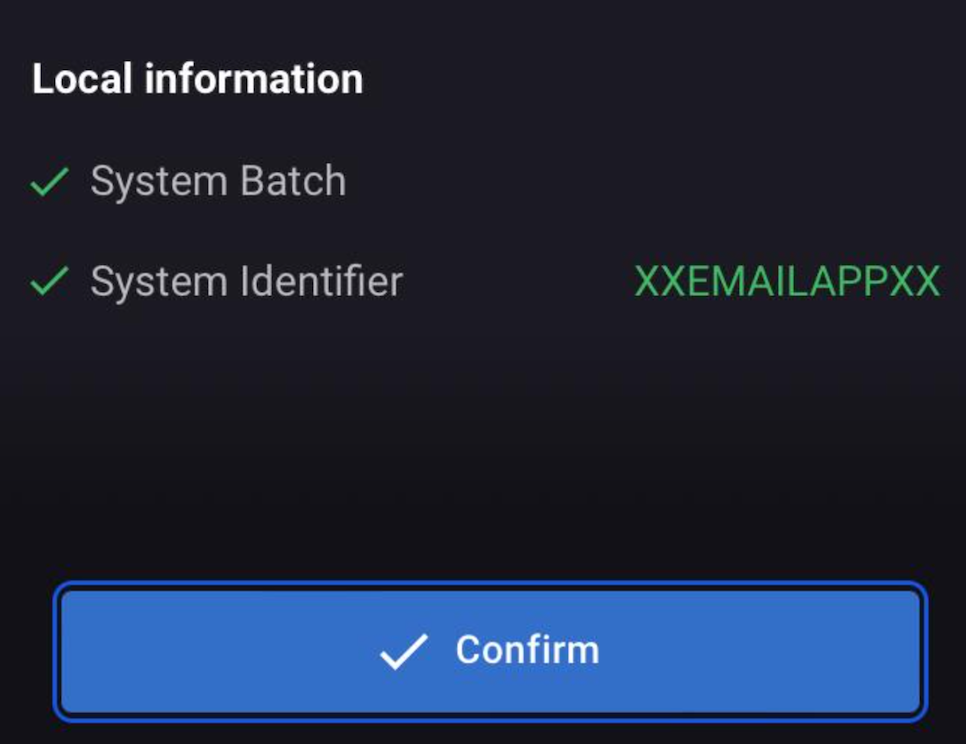
If a document in Rossum has a batch_id (System batch) and a client code (System identifier) then it is assumed that it has been downloaded to or uploaded from ERP and as such, the ERP system knows about it.
In the individual document, the data fields at the bottom of the left hand side will look like this:

To "reset" the document, you simply need to overwrite these two fields.
System Batch: clear this field
System Identifier: set to XXEMAILAPPXX
Warning
YOU DO NOT HIT THE CONFIRM BUTTON Unless you have confirmed / corrected all the invoice fields at the same time. Just updating the fields and then exiting the document is sufficient
The document will now look like this and will be treated as a new document when requesting the download from ERP
Re-Processing a Failed Import
On very rare occasions a document may fail to import into Rossum due to errors on their side.
You can force the system to reimport the data from the existing file without needing to re-send the file.
- Log in to the system to view the queue
- Select the row and on the far right hand side, select the three dots icon and choose "Re-extract" from the sub menu
