Document Lines & Coding

This section is only available if you are using line level extraction.
The top section shows you a summary of the invoice data and flags as when scrolled down the screen it is not possible to see this in most resolutions.
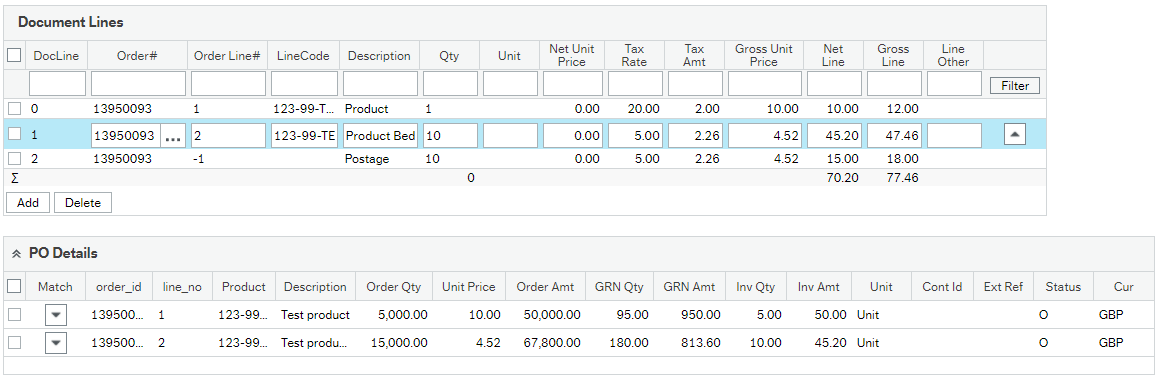
It is simply a table of line data that the system has found on the invoice.
You are able to manually add rows, duplicate rows or delete them.
The system now includes the ability to match PO data to invoice lines and then pass this to the IMS via EI02. The reason is that matching accuracy is significantly improved when using the order line (and the "Lines" matching flag on EI02) compared to products.
It is also possible to add coding for non-PO invoices, note that any coding that is entered for PO invoices would be automatically ignored by EI02 with the exception of the VAT code which is passed from the order.
Copy Lines
Update 1.3.2.1 added the ability to copy a line using the button on that row
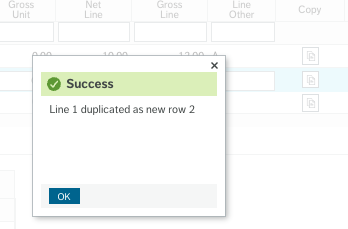
pressing this will create a duplicate of the line and its coding data and give it the next available line number.
PO Matching
Automatic PO Matching
When a valid order is returned via the OCR the system will apply some simple matching rules to identify the correct order line against the invoice lines and these will be added to the lines table.

You will notice that additional lines will have negative numbers and this is important for the IMS to be able to identify them as extra invoice lines. They will be lightly highlighted as they may need checking in case the system has been unable to match them.
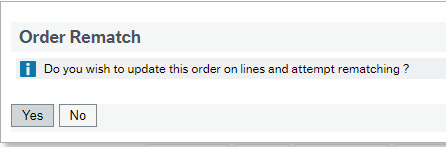
If you change the order id at the header level, the system will prompt you to run the code to update the order on all the lines rematch if you want to
Manual PO Matching
To enable you to manually match order lines, when you click on a document line with a valid PO you will be shown a "PO Details" section which has a match button to update the order line number on the row.
To update the document line, simply click on the
 button on the relevant PO row. This will only update the order line number and the tax system / code from the order.
Coding
AP Coding
It is possible to apply coding to the AP row, however the account code is fixed as it is not possible to overwrite this on the EI02 import (and doing so will cause issues). Defaults can be applied using the system setup values ERPOCRAP which can be found in System Setup Values
Manual Coding for Non PO Invoices
If a document does not have an order line then a rudimentary GL coding box will be shown instead of PO details. This allows you to enter coding information for an invoice line. However it is still possible to allow the system to default the account code in and then capture this in workflow for coding if you would prefer to use the main invoice registration screen (which we would recommend).

Tax Codes & Gross / Net
Tax codes are vital for the EI02 system to be able to calculate the VAT if this option is chosen (Vat from invoice is unchecked). Where possible they will be taken from the PO.
If your system setup value ERPOCR_CALC_AMOUNTS is switch on (it is by default) then the system will also try and balance the amounts for you.
This balancing can be triggered by changing the tax code on a line.
See this section for further details