Email/App Queue
The Email Page & Process
If the system parameter for use email is switched on then this button will appear on the home page.
This is used to pull down documents from Rossum that have not been uploaded via Unit4 ERP. This means not only documents sent in via email but uploaded via the app or when a PDF is split. As noted previously there are three "special" status codes which do not show in the status column in Unit4 ERP as they only show within the Rossum application
They will be assigned these status which are only available via the Rossum webpage and the APIs
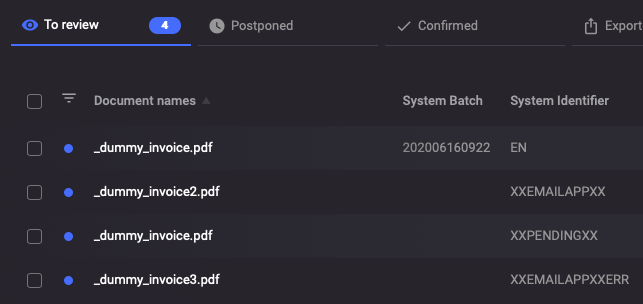
The top row shows a normal invoice, it has a Unit4 ERP batch number and client.
XXEMAILAPPXX The second row shows an invoice received from an external source which is awaiting someone to pick it up from Unit4 ERP.
XXPENDINGXX This invoice has been selected for download via Unit4 ERP and is currently being processed into a batch.
XXEMAILAPPXXERR This invoice had an issue when trying to add it to a batch, it will be picked up in the next download and tried again.
When you click the button to open the email page, you will be shown a simple header where you can enter your document type. As per the upload, the batch ID will have been automatically generated for you If you only have one document type in your restrict document type parameter then this will also be pre filled
Parameters
The screen will look like the below depending on your version:
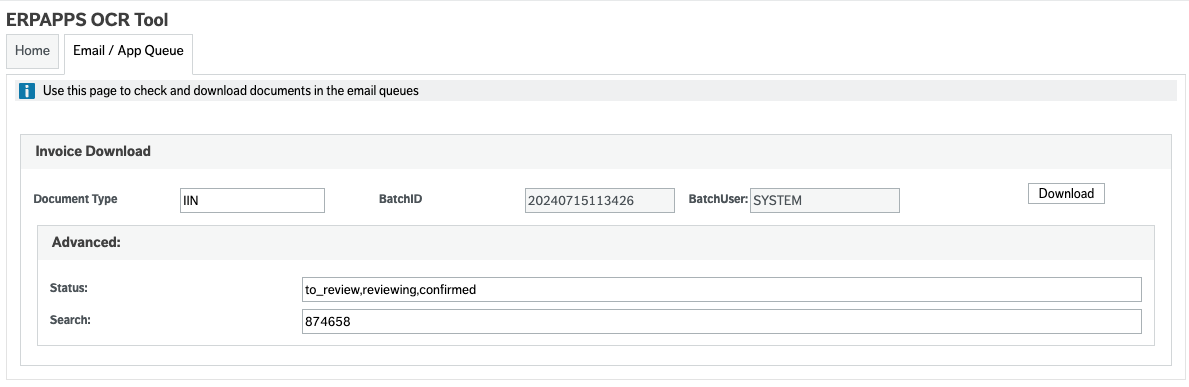
Document Type: is the Unit4 document type which will be used when invoices are processed on. BatchID: Will be autom completed with a batch id BatchUser: Your username
Download Will either star the download, or more likely, schedule the download report
Advanced: BETA
Status From version 1.3.4.3 you may define the status to download, if you are not sure about this setting then please leave the default. To avoid duplication in the system, we recommend ONLY using the three default status, but you may use combinations of these. If you use any of the "completed" status such as deleted or complete then you may well duplicate invoices. Please note that XXEMAILAPPXX will always be appended to the search
Search This is a free text search which will allow you to search all data points in the system, you can test and see what will be returned by logging in and using the search on rossum. Please note that XXEMAILAPPXX will always be appended to the search, so it will only ever download invoices with this identifier AND any additional filters you add in.
In the example above we are looking for this specific invoice number of 874658, as you can see it is not possible to tell the download which column to search, it can only search all data point.
If you wish to apply more than one filter, you should comma separate these. e.g:
874658,Test Supplier,120
Downloading
Once you have chosen your document type, click on the download button and the system will scan the Rossum system for invoices at status XXEMAILAPPXX and XXEMAILAPPXXERR and attempt to download them to the batch. This will also confirm the documents can be processed on Rossum and as such it will produce data for you.
Since version 1.2.2 if you have the system setup value ERPOCR_DL_VIA_REPORT switched on, then the system will request a download report, rather than running the download via the screen. This is so your Unit4 session isn't locked while downloading. You should monitor the report in your ordered reports, once complete the batch and the data should be available in the screen.
However also note that the documents can still be deleted from the batch page if required and this will remove them from both Unit4 ERP and the Rossum system.
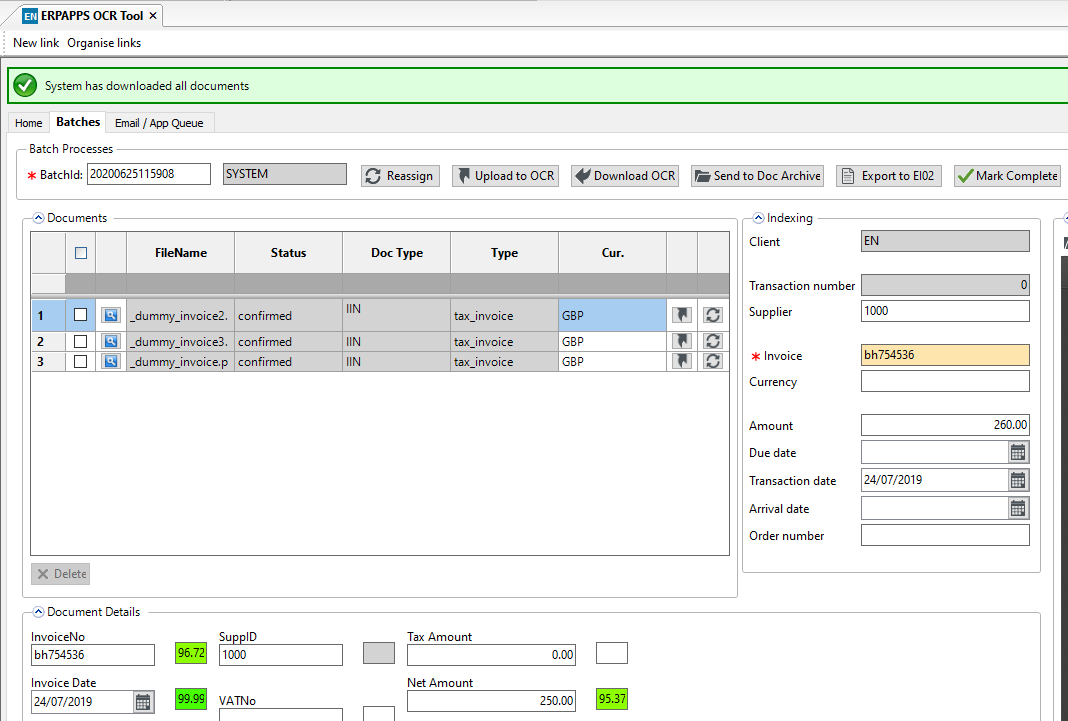
If there were some documents found to process, then you will be taken to the batch page where the documents and any data will be available for you:
If there are no documents then you will be told this:
